Rise of the Tomb Raider VR: Blood Ties and PC Setup
Explore Rise of the Tomb Raider VR in Blood Ties, learn which edition includes it, and set up the full campaign in stereoscopic 3D with a PC VR headset.
Jump to
Can You Play the Full Game in VR?
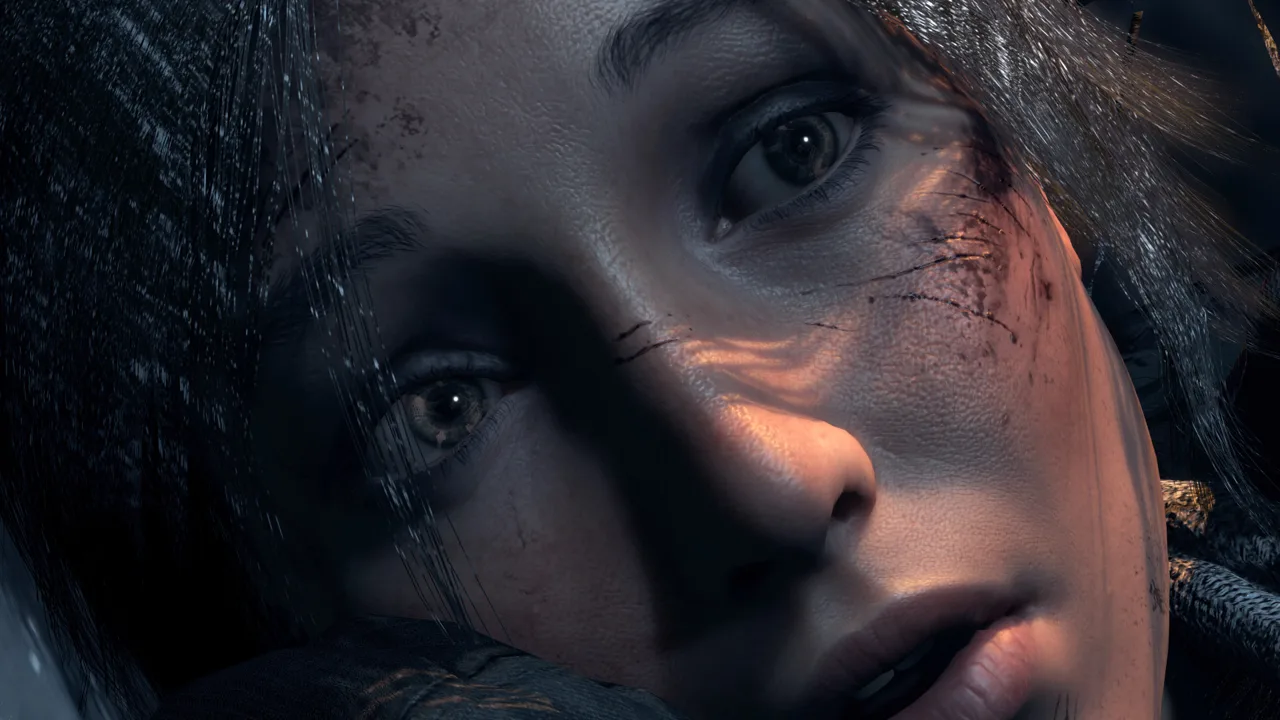
Rise of the Tomb Raider VR lets you explore Croft Manor through Lara’s eyes in Blood Ties. Native VR support covers this story chapter; the main campaign uses its regular third-person presentation. You can also play the campaign in stereoscopic 3D on a virtual screen inside a headset, which is a separate setup with different controls.
That distinction matters before you buy the game or install extra software. Blood Ties puts you inside Lara’s childhood home. The stereoscopic method adds depth to the campaign’s mountains, ruins, and characters while keeping the action on a screen in front of you.
Which Edition and Headset Do You Need?
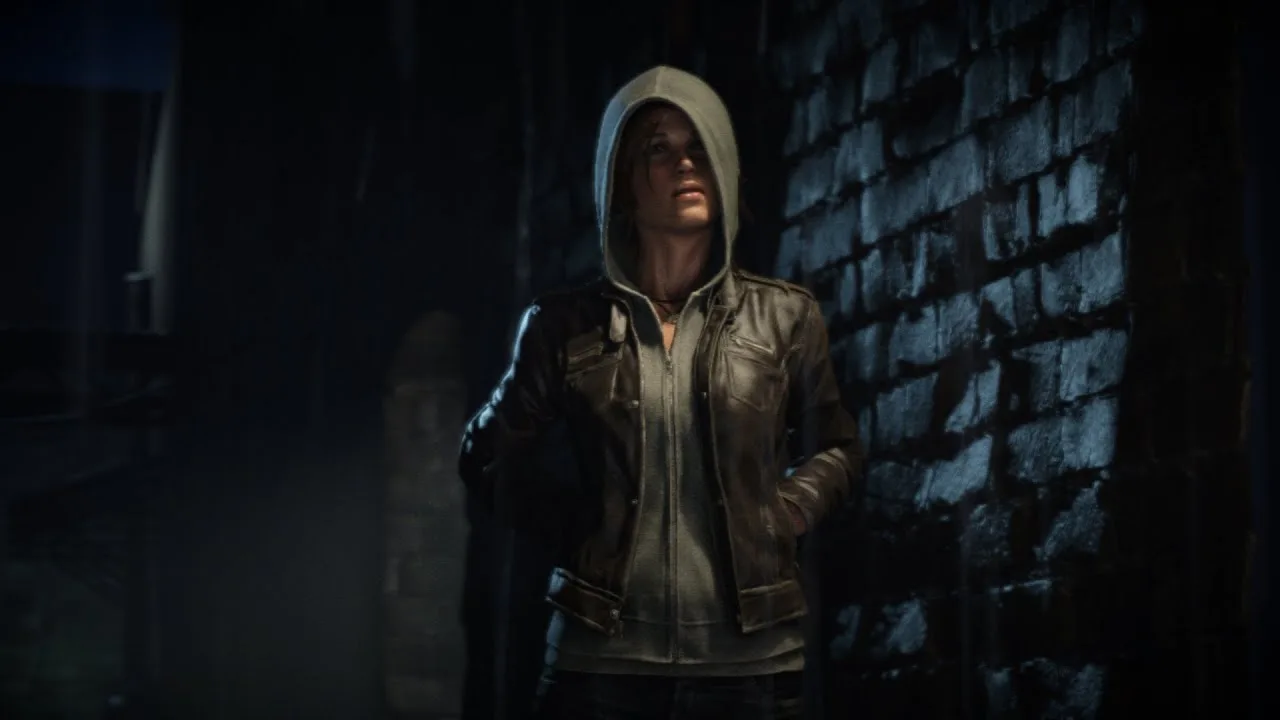
Rise of the Tomb Raider: 20 Year Celebration includes Blood Ties. If you own the standard edition, the chapter is included in the 20 Year Celebration Pack DLC and the Season Pass. The SteamVR update itself is free, but you still need access to the chapter.
Check your existing DLC before buying another edition. You can find the game and its purchase options on the Rise of the Tomb Raider Steam page.
The SteamVR release arrived on December 5, 2017, with support for HTC Vive and Oculus Rift. Those are the headsets named for the native PC VR chapter.
Quest 2 also features in the PC-based stereoscopic setup described below, using a Link cable and the Steam version of Virtual Desktop. That route runs the game on your computer and displays it in the headset.
What Blood Ties Offers Inside Croft Manor
Blood Ties centers on Lara’s family history and her connection to Croft Manor. You explore the main hall, Lord Croft’s office, and the basement while uncovering a family mystery.
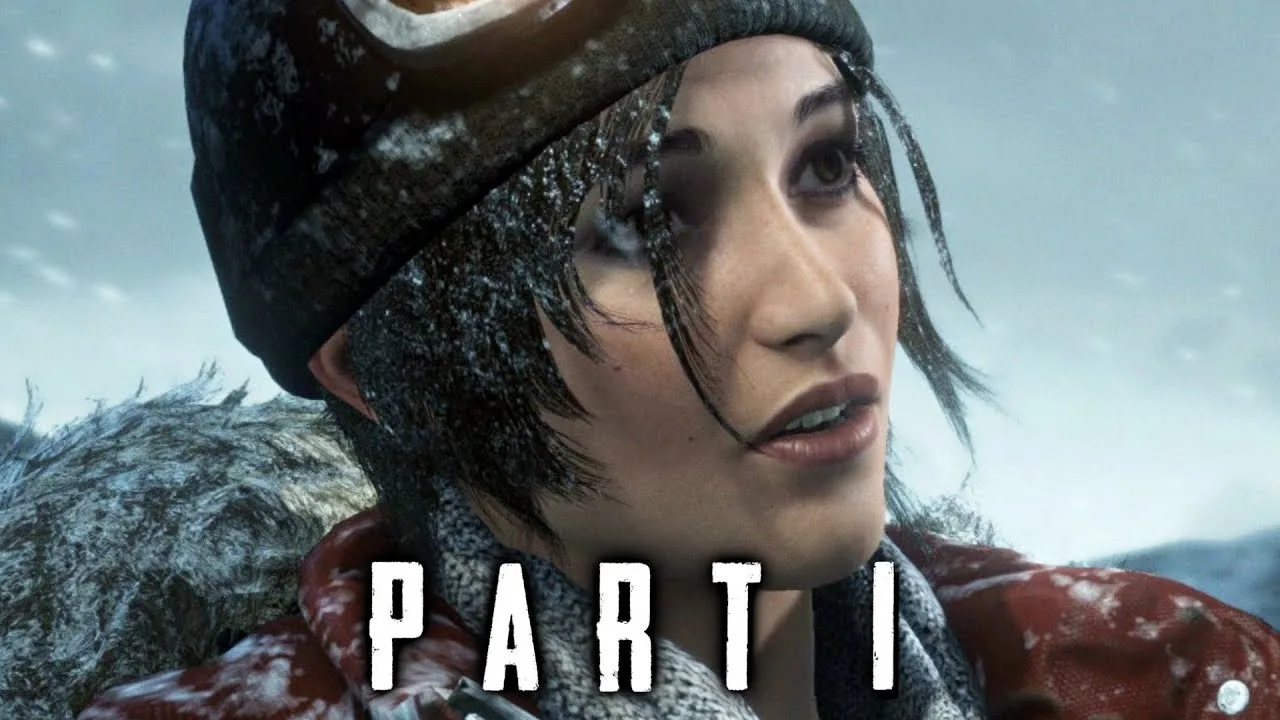
Expect a slower pace built around exploration and story. The appeal is walking through familiar rooms at human scale, examining the house, and spending time with Lara’s past. Audio recordings are a substantial part of that experience.
Blood Ties and Lara’s Nightmare are separate modes. Blood Ties is the story chapter with native VR support; Lara’s Nightmare is the zombie-defense mode set in the manor. Owning both does not turn the zombie mode into the same VR experience.
The SteamVR chapter initially uses teleportation. Walking movement becomes available early, around the laptop near the knight’s armor in the hall. If you prefer continuous movement, progress through that opening stretch before adjusting movement speed.
How to Play the Campaign in Stereoscopic 3D
The PC game includes a Stereoscopic 3D display option. Combined with the Steam version of Virtual Desktop, it can display the campaign as a large 3D screen inside your headset without requiring vorpX.
The Quest 2 setup uses a Link cable, a PC running the Steam game, and Virtual Desktop on Steam. Follow this sequence:
- Connect the headset and establish the PC VR connection.
- Launch the game using its regular launch option rather than the dedicated VR option.
- Open Options, then Display.
- Turn Stereoscopic 3D on and apply the change. The desktop image splits into left-eye and right-eye views.
- Launch the Steam version of Virtual Desktop and select Half Side-by-Side in its 3D options.
- Return to the game and use an Xbox controller or mouse and keyboard.
Touch controllers do not control the campaign in this setup.
Start with the default Stereoscopic Separation and Stereoscopic Pop Out values. Adjust them after viewing a scene if you want to change the depth effect. Virtual Desktop also lets you change the screen’s distance and curvature.
Keep the screen stationary by disabling Head Lock if it follows your head. You still control the game camera normally: turning your head lets you look around the virtual screen, rather than freely look around the game world.
Graphics and Audio Tips for the 3D Setup
Start with the Medium graphics preset if the stereoscopic campaign stutters. In the Quest 2 Link setup using an RTX 2070, maximum settings caused heavy stuttering, while Medium was used for the demonstrated gameplay.
Keep expectations specific to the mode you are running. Blood Ties through SteamVR and the campaign through a stereoscopic virtual screen use different presentation methods; a graphics configuration for one is not a performance target for the other.
Before starting a long session, test the game’s audio through the headset. If the picture works but dialogue is silent, check the active audio output and headset sound settings. Get both the split-image display and audio working before settling into the campaign.
Continue with
 Rise of the Tomb Raider Mods: Install and Fix GuideExplore Rise of the Tomb Raider mods with Classic Pack installation steps, outfit replacements, build compatibility tips, and fixes for texture problems.
More in Platforms
Rise of the Tomb Raider Switch 2: Performance & DLC Guide
Rise of the Tomb Raider Switch 2 brings 1080p, 30 FPS action and the 20 Year Celebration extras. Explore performance, controls, and DLC before you play.
Rise of the Tomb Raider System Requirements: PC Guide
Rise of the Tomb Raider system requirements for Windows, Mac, and Linux with minimum specs, recommended hardware, storage needs, and PC compatibility tips.
Join the community
Official channels for news, updates and player help: