
Rise of the Tomb Raider Mods: Install and Fix Guide
Explore Rise of the Tomb Raider mods with Classic Pack installation steps, outfit replacements, build compatibility tips, and fixes for texture problems.
Jump to
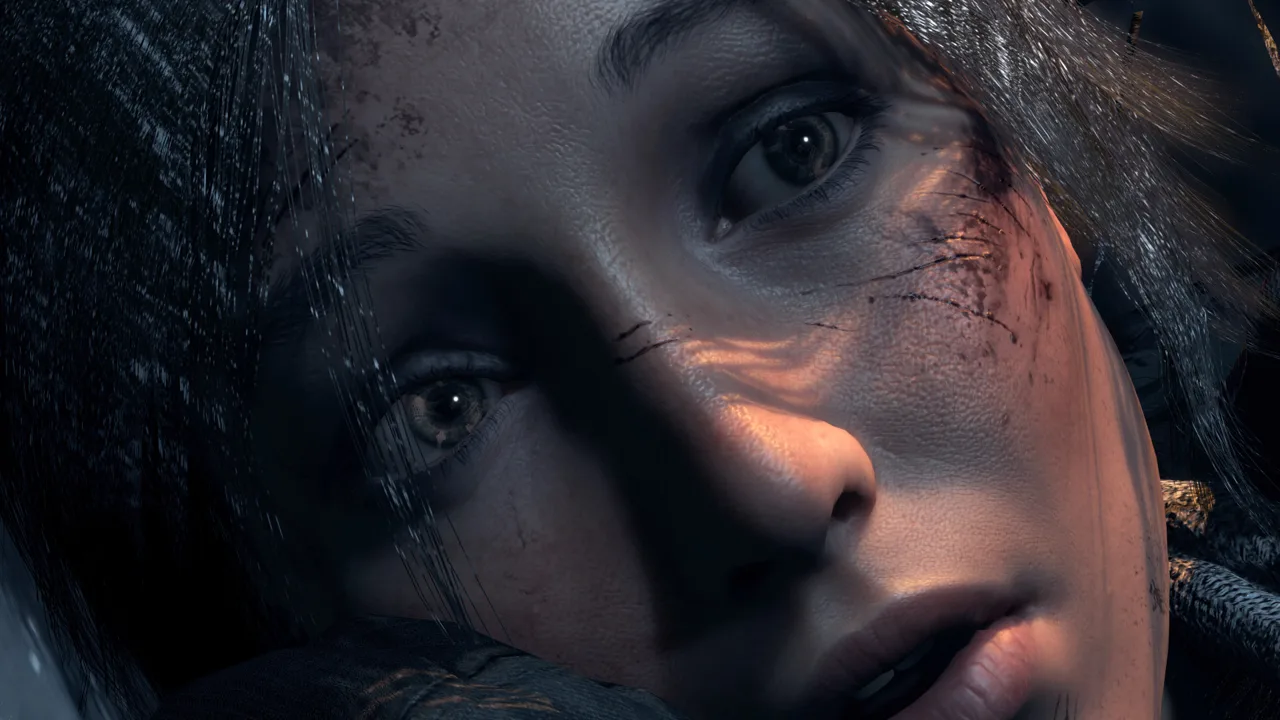
Can You Mod Rise of the Tomb Raider?
Rise of the Tomb Raider mods let you give Lara a classic look, but matching the mod to your game build matters. The Classic Pack replaces existing character models and textures, with its outfits accessed through specific costumes. Before installing it, check the required game files and back up the archive it modifies.
The installation steps below apply to the Windows game directory containing ROTTR.exe. The game also has macOS and Linux versions, but this workflow uses a Windows batch installer.
Build compatibility comes before installation. Older injector workflows target build 813, while some mods also work on newer builds. Older texture replacements can display incorrectly on newer versions, so follow the requirements for the particular mod you download rather than changing builds automatically.
Official page: Rise of the Tomb Raider™ (store.steampowered.com)
What the Classic Pack Changes
The Classic Pack brings classic Lara outfits into the game through a full model-and-texture replacement. Its Lara model is adapted from Shadow of the Tomb Raider and includes working facial animation.
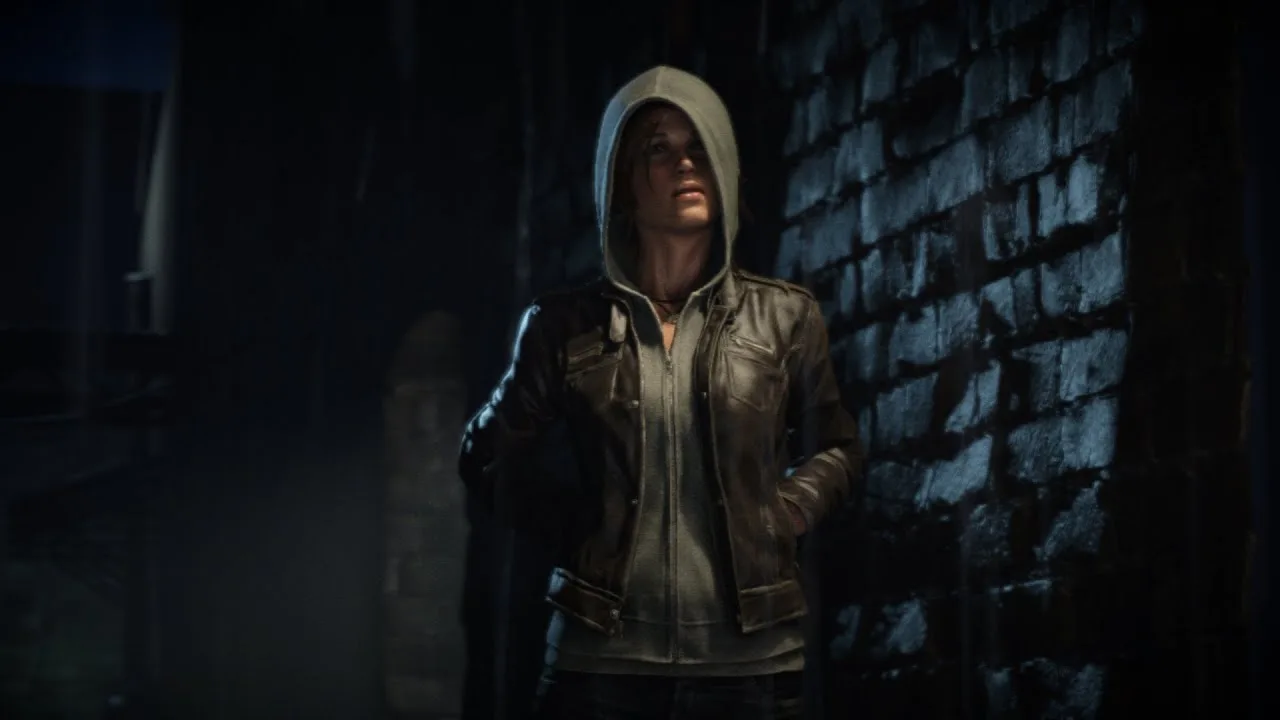
The two outfits replace different costumes:
| Classic Pack outfit | Costume it replaces |
|---|---|
| Classic Outfit | Gray Henley |
| TR1 Gym Outfit | Blue Henley |
For the Classic Outfit, select the Henley costume at a campfire after installation. The installation instructions also spell it “Grey Henley.”
The pack supports DirectX 12. Turn off Pure Hair to use the braided hairstyle.
Its replacement textures have limitations: mud and blood textures can look incorrect, and Lara’s altered textures can carry over to other costumes. Keep those issues in mind before installing additional outfit replacements.
How to Install the Classic Pack
This pack requires a game version that uses bigfile.update3. Its injector modifies bigfile.update3.000.tiger, making a clean backup essential.
- Open the main game directory. Locate the folder containing
ROTTR.exe. - Back up
bigfile.update3.000.tiger. Keep the untouched copy separate from the file the injector will modify. - Extract Mod Injector into that directory. Place its contents beside
ROTTR.exe. - Locate the Classic Outfit mod folder. Use the extracted folder containing the mod files.
- Drag that folder onto
InstallMod.bat. Drop it directly onto the batch file to start installation. - Launch the game and equip the replacement costume. Visit a campfire and select Gray Henley for the Classic Outfit.
Follow the installation requirements attached to any additional download. Check whether the mod requires an older game build before installing it.
Install one replacement at a time and check its intended outfit before adding another. This makes it easier to identify which change introduced a texture problem.
Fixing Broken Textures and Outfit Crashes
The Classic Pack has several specific loading issues. Use the symptom to decide what to try next.
- Wrong textures after loading another save: Restart the game and load a save where the classic costume is already equipped.
- Bugged textures after visiting Croft Manor: Avoid entering Croft Manor before loading the campaign when using this pack.
- Crashes after changing outfits: Switching away from the classic costume and then back can trigger a crash. Avoid repeatedly cycling between those outfits.
- Replacement textures appearing on other costumes: The pack can affect Lara’s textures across costumes. Changing clothes alone does not reliably clear the replacement.
If an older mod produces scrambled textures on a newer build, check its required version before reinstalling it. Repeating the same installation does not address a build mismatch.
To remove mods installed through this injector workflow, run InstallMod.bat by itself, without dragging a folder onto it. That operation uninstalls all mods handled by the workflow, so account for your other installed replacements before using it.
Classic Lara Options Included With the Game
Check your edition before downloading a replacement solely for a nostalgic outfit. Rise of the Tomb Raider: 20 Year Celebration already includes classic-themed content:
- The base game and Season Pass.
- Five classic Lara Croft character models for Expedition modes.
- An outfit and weapon inspired by Tomb Raider III.
Those included character models are tied to Expedition modes. The Classic Pack instead replaces the Henley costumes described above, giving you a different way to bring Lara’s classic appearance into your campaign.
Continue with
 Rise of the Tomb Raider Switch 2: Performance & DLC GuideRise of the Tomb Raider Switch 2 brings 1080p, 30 FPS action and the 20 Year Celebration extras. Explore performance, controls, and DLC before you play.
More in Platforms
Rise of the Tomb Raider System Requirements: PC Guide
Rise of the Tomb Raider system requirements for Windows, Mac, and Linux with minimum specs, recommended hardware, storage needs, and PC compatibility tips.
Rise of the Tomb Raider VR: Blood Ties and PC Setup
Explore Rise of the Tomb Raider VR in Blood Ties, learn which edition includes it, and set up the full campaign in stereoscopic 3D with a PC VR headset.
Join the community
Official channels for news, updates and player help: